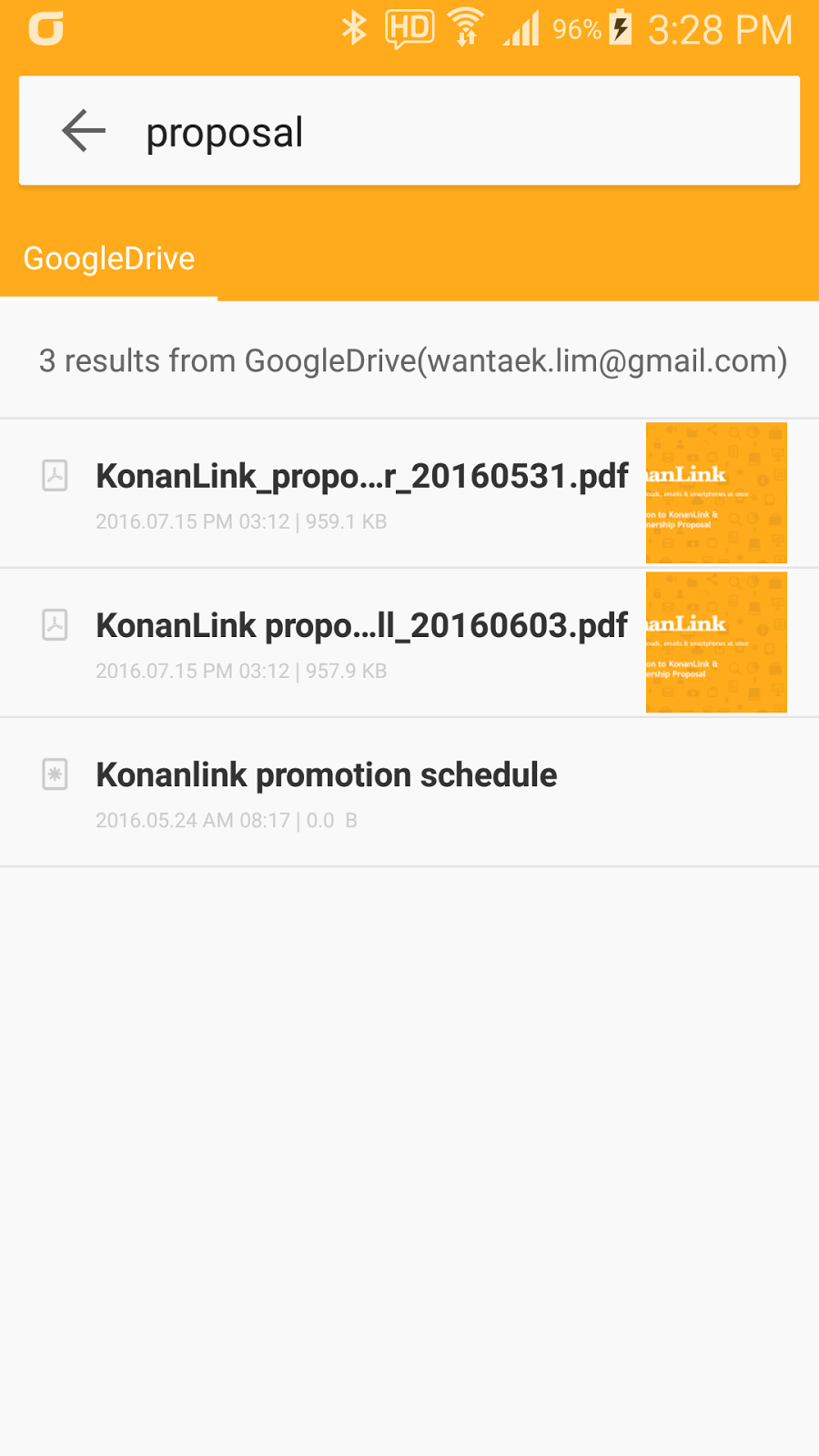
A
brief use of KonanLink:
1) Add
the service (cloud, evernote, gmail, etc) accounts which you want to search on
KonanLink.
2) For example,
add one of accounts for Google Drive to KonanLink.
3) Find the
documents by typing in “keyword” on the search window.
4) Preview the document.
5) Share it with your boss or customer.
More info & download: www.konanlink.com
Download KonanLink
installation file on your computer, and run the file.
To use KonanLink from PC or Mac, first download KonanLink installation
file. Go to KonanLink website (www.konanlink.com) and click "Download for
Windows" or "Download for Mac OS X" to start download.
Then, click the downloaded installation file or click Run(R) button.
Now, install KonanLink on your computer. From Windows, the user account
control will appear, as shown below. Click Yes(Y) to continue.
Select a language and click "OK" button.
Then, click "Install" button to start installation.
Click "Finish" to complete installation process.
Create KonanLink
account.
Once you install KonanLink on the computer, KonanLink Welcome screen
will appear, as shown below. In order to use KonanLink, you need to first
create a KonanLink account. Click "Sign up for KonanLink" button.
You may create KonanLink account by typing in your email address and
password. You may use 2 computers per 1 KonanLink account, so you may type in a
computer name in order to easily distinguish the computers.
Now, you can use
KonanLink.
Once the KonanLink main page shows up on the screen, it means that all
of the procedures have been completed to use KonanLink. Now you can search
files or mails in the computer within just 1 second.
If you want to search files in your smartphone, or if you want to search
files in your computer or smartphone using your smartphone, download KonanLink
on the smartphone you are using, and sign in to KonanLink with the your
account.
More info about KonanLink: www.konanlink.com