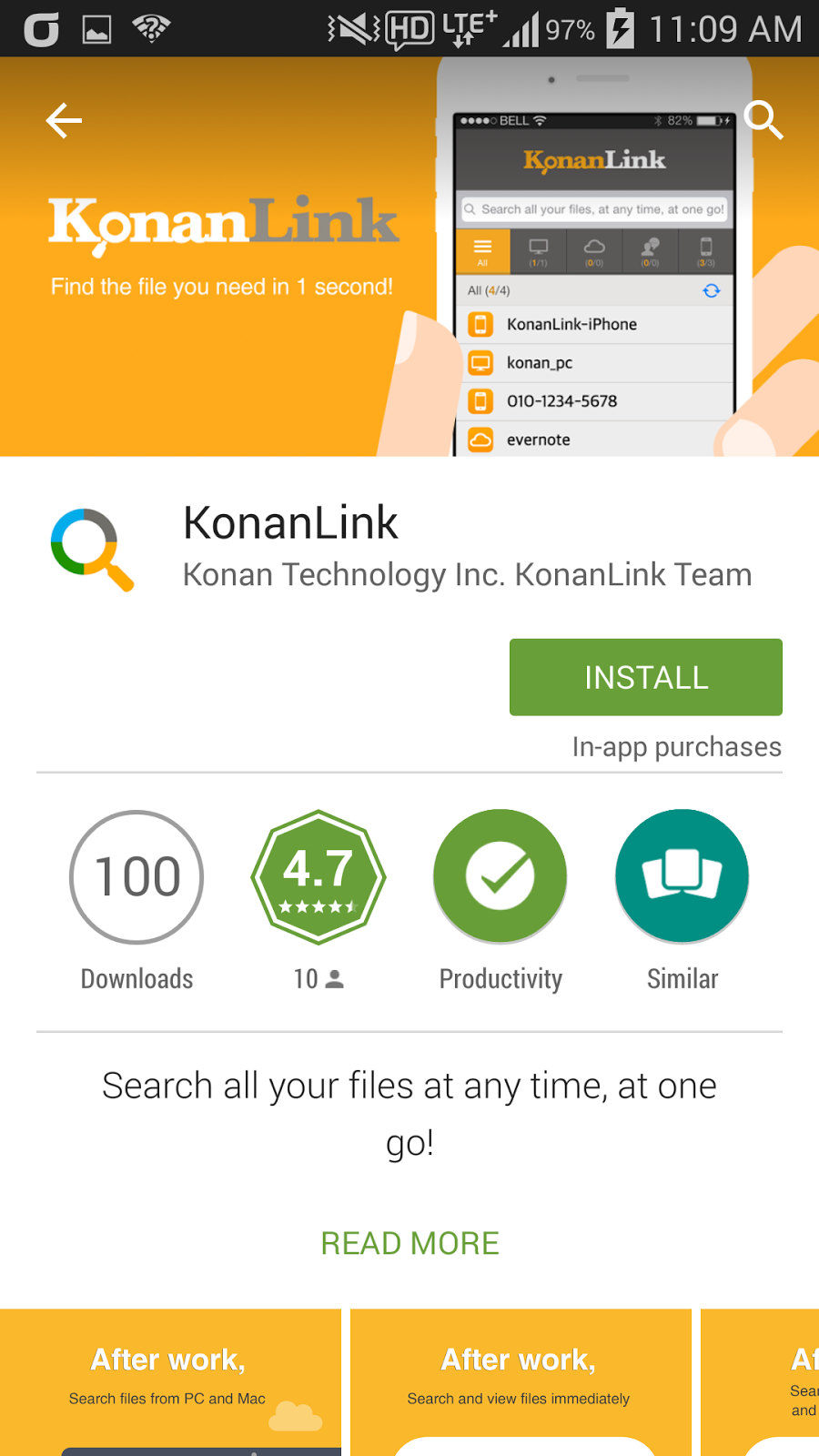
Once
you sign up for KonanLink, you can search all of your devices at once. (The
image below is the screenshot of KonanLink from smartphone)
Type
in "guaranteed" on the search bar. KonanLink will show files(mails)
that include the word "guaranteed" in the title or the content.
Once
you click a search result, the preview of the file(mail) will be displayed on
screen, and you can either send to others or open the file using File Explorer.
However,
under KonanLink free account, you can only read or send files(mails) that have
been last modified within 3 months. Therefore, to read or send any file or mail
older than 3 months, you would need to upgrade to Premium.
The
differences between KonanLink and Premium are as follows:
-
Whether you can read or send files(mails) older than 3 months
-
Whether it supports File Explorer
More: www.konanlink.com
Showing posts with label free personal unified search. Show all posts
Oct 15, 2015
[Notification] What is the difference between KonanLink and KonanLink Premium?
Sep 26, 2015
[Notification] What if you signed up for KonanLink, but cannot search from KonanLink...?
To
protect user privacy, KonanLink uses "user's PC or Mac" as the search
server. Therefore, KonanLink does not need to, and thus, does not save user's
file or mail in external sources.
For this reason, if the user does not install KonanLink on PC or Mac, the search server will not be created, making it impossible to search from KonanLink.
In order to search using KonanLink, the user must install KonanLink on PC or Mac, and sign in with the account he/she created from smartphone.
For this reason, if the user does not install KonanLink on PC or Mac, the search server will not be created, making it impossible to search from KonanLink.
In order to search using KonanLink, the user must install KonanLink on PC or Mac, and sign in with the account he/she created from smartphone.
Sep 10, 2015
KonanLink can search all devices used for office work at once
If
you spend over 10 minutes shuffling through your office computer, Outlook mail,
Dropbox, Google Drive, Evernote, web mail (Gmail or Yahoo mail, etc.), iPhone
or Android phone to find the document you need for your report, then try
KonanLink.
KonanLink
searches all of your devices at once, so it takes merely a second to find files
over a year old. Moreover it’s free.
More: www.konanlink.com
Sep 3, 2015
Just spend 10 seconds to search Outlook mail from iPhone6 or Samsung Galaxy Note5 and send to boss or customer!
KonanLink,
a free personal unified search service, can search Outlook mail title, content
and even attachment from iPhone6, Android phone such as Galaxy S6 and Galaxy Note5 in just 1 second,
and send to boss or customer.
More: www.konanlink.com

Aug 13, 2015
KonanLink is a free personal multi-device search service that searches documents from various devices at once
Mr. A,
an office worker in his 30s, uses various devices and services for work!
He creates documents from Windows PC, uses Outlook mail, and searches on internet to find important data. He uses Evernote to collect and arrange internet data, take important notes, and organize ideas. He uses Dropbox to share data with teammates and back up important files. He takes photos of the meeting with iPhone6. He shares documents using Gmail.
Searching the file in need from each and every device may result in inconvenience and waste of time.
"The report is due just around the corner, but I can't find the reference document...Was it in office PC? Google Drive? Evernote? Or maybe Outlook attachment file?"
KonanLink is a free personal multi-device search service that searches documents from various devices at once using PC, Mac, and smartphone.
He creates documents from Windows PC, uses Outlook mail, and searches on internet to find important data. He uses Evernote to collect and arrange internet data, take important notes, and organize ideas. He uses Dropbox to share data with teammates and back up important files. He takes photos of the meeting with iPhone6. He shares documents using Gmail.
Searching the file in need from each and every device may result in inconvenience and waste of time.
"The report is due just around the corner, but I can't find the reference document...Was it in office PC? Google Drive? Evernote? Or maybe Outlook attachment file?"
KonanLink is a free personal multi-device search service that searches documents from various devices at once using PC, Mac, and smartphone.
Jun 16, 2015
Search Dropbox file contents
With Dropbox for Business, users can search file
names as well as file contents (English only), but Dropbox Pro or Basic, used
by majority of users, only allows users to search file names.
Therefore, when there are thousands of files saved in Dropbox, it may take up to 10~20 minutes to find the file needed.
With KonanLink, a free personal multi-device search service, users can search file names, as well as file contents at once.
KonanLink searches users' PC, Mac, iPhone, Android phone, Dropbox, Google Drive, Outlook mail, Gmail, Hotmail, as well as Evernote in 1 second. Moreover, KonanLink can be used with PC, Mac, and even iPhone and Android phone.
More info about KonanLink: www.konanlink.com
Therefore, when there are thousands of files saved in Dropbox, it may take up to 10~20 minutes to find the file needed.
With KonanLink, a free personal multi-device search service, users can search file names, as well as file contents at once.
KonanLink searches users' PC, Mac, iPhone, Android phone, Dropbox, Google Drive, Outlook mail, Gmail, Hotmail, as well as Evernote in 1 second. Moreover, KonanLink can be used with PC, Mac, and even iPhone and Android phone.
More info about KonanLink: www.konanlink.com
Jun 3, 2015
Busy, KonanLink!
Each day is hectic at work.
Shuffling through countless files and mails probably won’t be any help to your busy schedule. Especially, when you are looking for older files or mails, 10~20 minutes pass by before you even know it.
KonanLink is a free personal unified, multi-device search service that searches any file or mail, regardless of how old it is, in 1 second. Use KonanLink to save time and give yourself a quick break.
More info about KonanLink: www.konanlink.com
Shuffling through countless files and mails probably won’t be any help to your busy schedule. Especially, when you are looking for older files or mails, 10~20 minutes pass by before you even know it.
KonanLink is a free personal unified, multi-device search service that searches any file or mail, regardless of how old it is, in 1 second. Use KonanLink to save time and give yourself a quick break.
More info about KonanLink: www.konanlink.com
Apr 24, 2015
KonanLink Episode 2 Call from the Boss
As soon as you get to the office, your boss asks for
an urgent RFP file from last year's governmental project.
You search through PC folders, Windows desktop search, Dropbox, Outlook, and even web mail, but still have no clue where it is...
You finally search using KonanLink, and find out that the RFP file was attached in the web mail!
KonanLink is a personal multi-device search service that searches PC, Mac, iPhone, Android phone, Google Drive, Dropbox, Evernote, as well as Outlook and web mail (Gmail, Yahoo Mail, etc.) within 1 second.
Watch the related video clip on youtube
You search through PC folders, Windows desktop search, Dropbox, Outlook, and even web mail, but still have no clue where it is...
You finally search using KonanLink, and find out that the RFP file was attached in the web mail!
KonanLink is a personal multi-device search service that searches PC, Mac, iPhone, Android phone, Google Drive, Dropbox, Evernote, as well as Outlook and web mail (Gmail, Yahoo Mail, etc.) within 1 second.
Watch the related video clip on youtube
Apr 21, 2015
KonanLink Episode 1 On your way back home from work
You
are on your way back home from work by subway or car, and the client company
requests you to resend the document you sent last time.
With KonanLink, you can search files or Outlook mails out of office, or even out of country, in 1 second and send them via email or WhatsApp in 10 seconds.
Watch the related video clip on youtube
With KonanLink, you can search files or Outlook mails out of office, or even out of country, in 1 second and send them via email or WhatsApp in 10 seconds.
Watch the related video clip on youtube
Mar 24, 2015
Searching files using KonanLink
Type in the search keyword in KonanLink search bar.
If you want to search file or Outlook mail from your PC, Mac, iPhone, or Android phone with KonanLink installed, type in the search word included in the file that you wish to search in the search bar. For example, if you want to search files related to Samsung Galaxy Gift, type in "samsung gift."
Currently, KonanLink searches searchable devices and shows files or Outlook mails that include "samsung gift." Searchable devices in the sample picture are PC (computer name VAIO) and Android phone that have KonanLink installed. To search Cloud, web mail, or Evernote at once, please refer here.
Check files or Outlook mails by clicking search results
By clicking a search result, you can check the relevant file or Outlook mail. For example, if you click "samsung-gift-page.png," you can see the screen as shown below.
More info about KonanLink: www.konanlink.com
Installing KonanLink on iPhone or Android phone
Searching files using KonanLink
Searching files or Outlook mails in the office PC using iPhone or Android phone
Search Dropbox, Google Drive, Evernote, or Web mail (Gmail, etc.) using KonanLink
If you want to search file or Outlook mail from your PC, Mac, iPhone, or Android phone with KonanLink installed, type in the search word included in the file that you wish to search in the search bar. For example, if you want to search files related to Samsung Galaxy Gift, type in "samsung gift."
Currently, KonanLink searches searchable devices and shows files or Outlook mails that include "samsung gift." Searchable devices in the sample picture are PC (computer name VAIO) and Android phone that have KonanLink installed. To search Cloud, web mail, or Evernote at once, please refer here.
Check files or Outlook mails by clicking search results
By clicking a search result, you can check the relevant file or Outlook mail. For example, if you click "samsung-gift-page.png," you can see the screen as shown below.
More info about KonanLink: www.konanlink.com
Learn About KonanLink
Searching files using KonanLink
Searching files or Outlook mails in the office PC using iPhone or Android phone
Search Dropbox, Google Drive, Evernote, or Web mail (Gmail, etc.) using KonanLink
Mar 18, 2015
Installing KonanLink on iPhone or Android phone
Install KonanLink from
Apple Appstore or Google Play Store.
In order to use KonanLink from iPhone or Android phone, search and install KonanLink from Apple Appstore or Google Play Store.

Run KonanLink and sign in using the account created from the PC version.
Now, run KonanLink from iPhone or Android phone and select "Sign In" button. If you did not install KonanLink on PC or Mac, select "Sign Up for KonanLink" button.
Type in the email address and password created from KonanLink PC or Mac version, and select “Sign In.”

Decide and select whether you want to search pictures or files in your iPhone or Android phone.
If you want to search pictures or files in your iPhone or Android phone using KonanLink, select "include in search," and if you do not want to search pictures or files in your iPhone or Android phone, select "exclude from search." In the sample screenshot, "include in search" is selected.
Even if you select "exclude from search," you can still search and share files and Outlook mails in your PC or Mac using iPhone or Android phone when you are out of the office for business trip or vacation.
Now, you can use KonanLink from iPhone or Android phone, as well.
You can search files in your PC/Mac and iPhone/Android phone using your iPhone or Android phone in just 1 second.
More info about KonanLink: www.konanlink.com
Learn About KonanLink
Installing KonanLink on iPhone or Android phone
Searching files using KonanLink
Searching files or Outlook mails in the office PC using iPhone or Android phone
Search Dropbox, Google Drive, Evernote, or Web mail (Gmail, etc.) using KonanLink
In order to use KonanLink from iPhone or Android phone, search and install KonanLink from Apple Appstore or Google Play Store.

Run KonanLink and sign in using the account created from the PC version.
Now, run KonanLink from iPhone or Android phone and select "Sign In" button. If you did not install KonanLink on PC or Mac, select "Sign Up for KonanLink" button.
Type in the email address and password created from KonanLink PC or Mac version, and select “Sign In.”

Decide and select whether you want to search pictures or files in your iPhone or Android phone.
If you want to search pictures or files in your iPhone or Android phone using KonanLink, select "include in search," and if you do not want to search pictures or files in your iPhone or Android phone, select "exclude from search." In the sample screenshot, "include in search" is selected.
Even if you select "exclude from search," you can still search and share files and Outlook mails in your PC or Mac using iPhone or Android phone when you are out of the office for business trip or vacation.
Now, you can use KonanLink from iPhone or Android phone, as well.
You can search files in your PC/Mac and iPhone/Android phone using your iPhone or Android phone in just 1 second.
More info about KonanLink: www.konanlink.com
Learn About KonanLink
Searching files using KonanLink
Searching files or Outlook mails in the office PC using iPhone or Android phone
Search Dropbox, Google Drive, Evernote, or Web mail (Gmail, etc.) using KonanLink
Mar 13, 2015
Install KonanLink on Your Computer
Download KonanLink
installation file on your computer, and run the file.
To use KonanLink from PC or Mac, first download KonanLink installation file. Go to KonanLink website (www.konanlink.com) and click "Download for Windows" or "Download for Mac OS X" to start download.
Then, click the downloaded installation file or click Run(R) button.
Now, install KonanLink on your computer. From Windows, the user account control will appear, as shown below. Click Yes(Y) to continue.
Select a language and click "OK" button.
Then, click "Install" button to start installation.
Click "Finish" to complete installation process.
Create KonanLink account.
Once you install KonanLink on the computer, KonanLink Welcome screen will appear, as shown below. In order to use KonanLink, you need to first create a KonanLink account. Click "Sign up for KonanLink" button.
You may create KonanLink account by typing in your email address and password. You may use 2 computers per 1 KonanLink account, so you may type in a computer name in order to easily distinguish the computers.
Now, you can use KonanLink.
Once the KonanLink main page shows up on the screen, it means that all of the procedures have been completed to use KonanLink. Now you can search files or mails in the computer within just 1 second.
If you want to search files in your smartphone, or if you want to search files in your computer or smartphone using your smartphone, download KonanLink on the smartphone you are using, and sign in to KonanLink with the your account.
More info about KonanLink: www.konanlink.com
To use KonanLink from PC or Mac, first download KonanLink installation file. Go to KonanLink website (www.konanlink.com) and click "Download for Windows" or "Download for Mac OS X" to start download.
Then, click the downloaded installation file or click Run(R) button.
Now, install KonanLink on your computer. From Windows, the user account control will appear, as shown below. Click Yes(Y) to continue.
Select a language and click "OK" button.
Then, click "Install" button to start installation.
Click "Finish" to complete installation process.
Create KonanLink account.
Once you install KonanLink on the computer, KonanLink Welcome screen will appear, as shown below. In order to use KonanLink, you need to first create a KonanLink account. Click "Sign up for KonanLink" button.
You may create KonanLink account by typing in your email address and password. You may use 2 computers per 1 KonanLink account, so you may type in a computer name in order to easily distinguish the computers.
Now, you can use KonanLink.
Once the KonanLink main page shows up on the screen, it means that all of the procedures have been completed to use KonanLink. Now you can search files or mails in the computer within just 1 second.
If you want to search files in your smartphone, or if you want to search files in your computer or smartphone using your smartphone, download KonanLink on the smartphone you are using, and sign in to KonanLink with the your account.
More info about KonanLink: www.konanlink.com
Learn About KonanLink
Subscribe to:
Posts (Atom)